Development Environment
Wiki.js is fully modular, which allows any developer to write their own module.
We provide VS Code devcontainer configuration to quickly provision a batteries-included development environment.
Prerequisites
- Docker + Docker Compose (via Docker Desktop)
- Linux / macOS / Windows 10-11 Pro
- Visual Studio Code
First-time Setup
- Clone the project from GitHub.
- Open the project folder in Visual Studio Code
- From the Extensions tab, install the Remote Development extension by Microsoft (ms-vscode-remote.vscode-remote-extensionpack)
- Click the green button located in the bottom-left corner of VS Code: (or open the command palette)
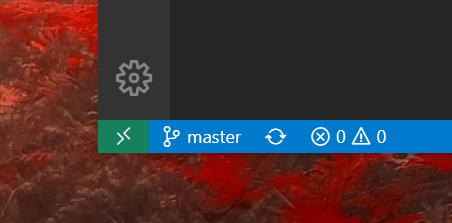
- Select Dev Containers - Reopen in Container
- VS Code will now reload and start initializing the containers. Wait for it to complete. This may take a while the very first time as npm dependencies must be installed.
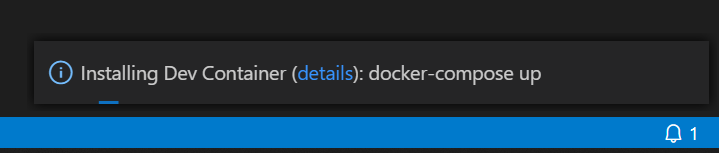
- A Terminal should automatically be launched in a split pane view:
- From left terminal, type the following command to start the backend server in development mode:
pnpm dev - From right terminal, type the following command to start the frontend development server (Quasar):
pnpm dev - Wait for the initialization to complete on both side.
- Browse to
http://localhost:3001(replace localhost with the hostname of your machine if applicable). - Login using
admin@example.com/12345678credentials.
Stopping the project
Click on File > Close Remote Connection to stop the containers and close the Visual Studio Code instance.
Removing the containers
When you're done and no longer need the development environment, open the Remote Explorer tab and remove all containers starting with the name wiki.
Building production assets
Once you're ready to deploy your changes, you need to build the client assets into a production optimized bundle. From the ux directory, run the command:
pnpm buildNotes
Dev Server
Any changes made to client files will automatically trigger a build and the site will be updated live automatically. If the changes cannot be replaced inline, the page will reload automatically.
Any changes made to the server files will automatically trigger a server restart. You can also force a restart by typing rs in the terminal followed by Enter.
To stop the development server, use CTRL-C until the process exits.
Build Production Images
Production docker images can be built using the following command:
docker build -t requarks/wiki -f dev/build/Dockerfile .Official Builds
Because the main branch contains pre-release code, it is not recommended to build directly from the source code for a production deployment. Doing so will result in a red warning banner being displayed during setup and in the header on all pages. You should instead follow the installation instructions.
A reproducable build workflow is however available here should you want to build it yourself from a production release tag.