Site Management
From the Administration Area, click on the Sites section from the sidebar navigation.
Multiple wiki sites can be hosted on the same Wiki.js instance. This allows you to clearly separate content belonging to different teams or products.
The following resources are tied to a site:
- Pages (including history)
- Comments
- Media Assets
- Site Configuration (e.g. theme, locales, navigation, etc.)
Requirements
- Each site requires a dedicated hostname (sub-domain or domain).
- The server cannot listen on multiple network interfaces for different sites. If you have such need, you must either use a reverse proxy (e.g. nginx) to handle traffic from different IPs or launch dedicated instances for each interface.
Create a Site
Click on the New Site button. A dialog to create a new site will appear.
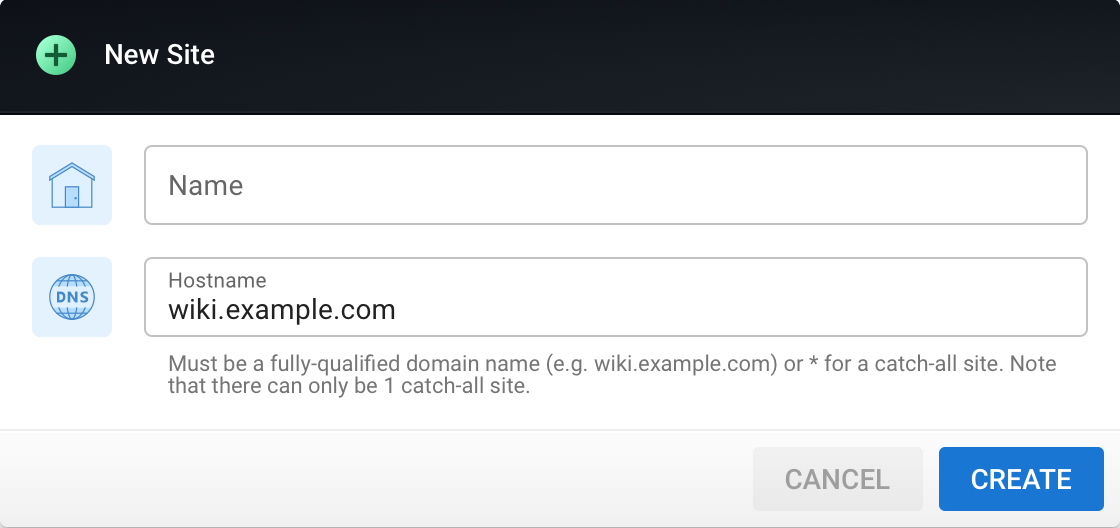
| Property | Description |
|---|---|
| Name | Enter a name for your site. It will be shown in the top-left corner of the site. |
| Hostname | Enter either a fully-qualified domain name (e.g. wiki.example.com) or * (wildcard) for a catch-all site. Note that there can only be 1 catch-all site. This is used to route requests to the proper site. If a request doesn't match any hostname, it will fallback to the catch-all site. |
Both values can be changed at any time later from the General page.
Modify a Site
From the left sidebar, select the site you want to edit from the dropdown menu:
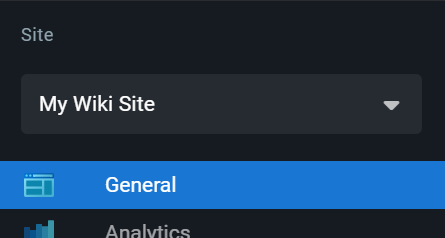
Sidebar menu items (e.g. General, Analytics, etc.) under the Site section will affect only the currently selected site.
The General page is where most of the site settings can be customized.
Site Info
| Property | Description |
|---|---|
| Site Title | The name of the site displayed in the header and appended to the pages meta title. |
| Site Description | The default description when none is provided for a page. |
| Site Hostname | The hostname the site will respond to. Can be set to * (wildcard) for catch-all site. Note that there can only be 1 catch-all site. This is used to route requests to the proper site. If a request doesn't match any hostname, it will fallback to the catch-all site. |
Footer / Copyright
| Property | Description |
|---|---|
| Company / Organization Name | Name to use when displaying the copyright notice in the footer. Leave empty to hide. A content license must also be selected for it to appear. |
| Content License | License shown in the footer of all content pages. |
| Additional Footer Text | Optionally add more content to the footer, such as additional copyright terms or mandatory regulatory info. Shown below the copyright line. |
Features
| Property | Description |
|---|---|
| Allow Comments | Can users leave comments on pages? Can be restricted using Page Rules. |
| Allow Contributions | Can users with read access permissions propose changes for pages? Can be restricted using Page Rules. |
| Allow Profile Editing | Can users edit their own profile? If profile data is managed by an external identity provider, you should turn this off. |
| Allow Ratings | Can users leave ratings on pages? Can be restricted using Page Rules. |
| Allow Search | Can users search for content they have read access to? The search bar will be hidden if turned off. |
URL Handling
| Property | Description |
|---|---|
| Page Extensions | A comma-separated list of URL extensions that will be treated as pages. For example, adding md will treat /foobar.md the same as /foobar. |
Logo
| Property | Description |
|---|---|
| Site Logo | Logo image file, in SVG, PNG, JPG, WEBP or GIF format. Should be a square image, otherwise turn off the Display Site Title option. |
| Display Site Title | Should the site title be displayed next to the logo? If your logo isn't square and contain your brand name, turn this option off. |
| Favicon | Favicon image file, in SVG, PNG, JPG, WEBP or GIF format. Must be a square image. Shown in browser tabs and as the app icon on mobile. |
Site Defaults
| Property | Description |
|---|---|
| Default Timezone | The default timezone for new users. |
| Default Date Format | The default date format for new users. |
| Default Time Format | The default time format for new users. |
| Default ToC Depth | The default minimum and maximum header levels to show in the table of contents. |
SEO
| Property | Description |
|---|---|
| Allow Indexing by Search Engines | This sets the meta-robots property to index or noindex. |
| Allow Search Engines to Follow Links | This sets the meta-robots property to follow or nofollow. |
| Allow Sitemap | Make a sitemap.xml available to search engines with all pages accessible to guests. |
Disable a Site
You can disable a site which prevents all non-administrator users from accessing it. This is useful if you need to perform maintenance operations and want to prevent any changes to the site during this timeframe.
From the Sites section, click on the Active toggle next to the site you want to disable. You'll be prompted to confirm your choice.
To re-enable a site, click on the same toggle again.
Delete a Site
To delete a site, click the red delete button next to the desired site. You'll be prompted to confirm your choice.